Edit or duplicate a title record
Editing a title record lets you change, add, or delete information in an existing record. Duplicating a title record lets you create a new title record using an existing record and then make minimal changes. For example, your district might have separate title records for hard cover and paperback books.
To edit or duplicate a title record:
- Select either Catalog > Library Search or Catalog > Add Title.
- Search for the desired title to edit.
- When you find the title, click Details.
- On the Title Details tab, do one of the following:
- Make changes accordingly.
- To save changes, click Save Title.
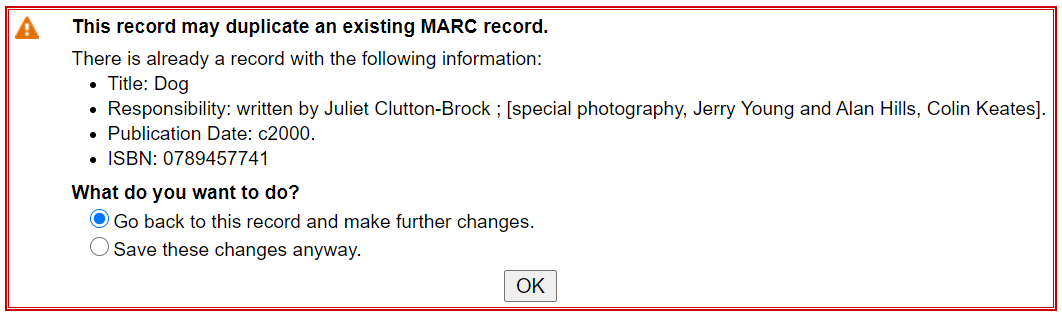
If you duplicate a title record, a message informs you that you are about to duplicate a record. You must select a What do you want to do? response to proceed.