Create a library hold or interlibrary loan request from a catalog search
Logged-in users can place holds and submit interlibrary loan (ILL) requests for themselves from a title's details.
|
Notes:
|
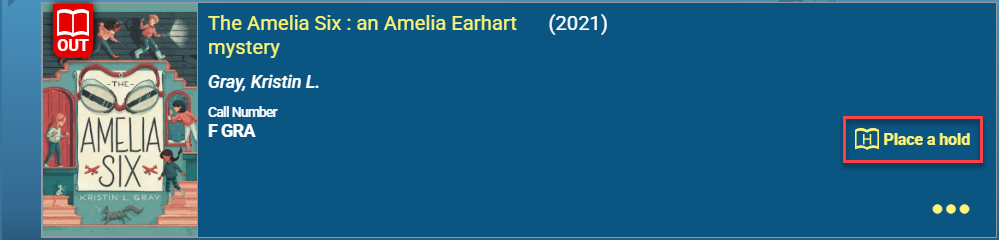
To place a hold or ILL request:
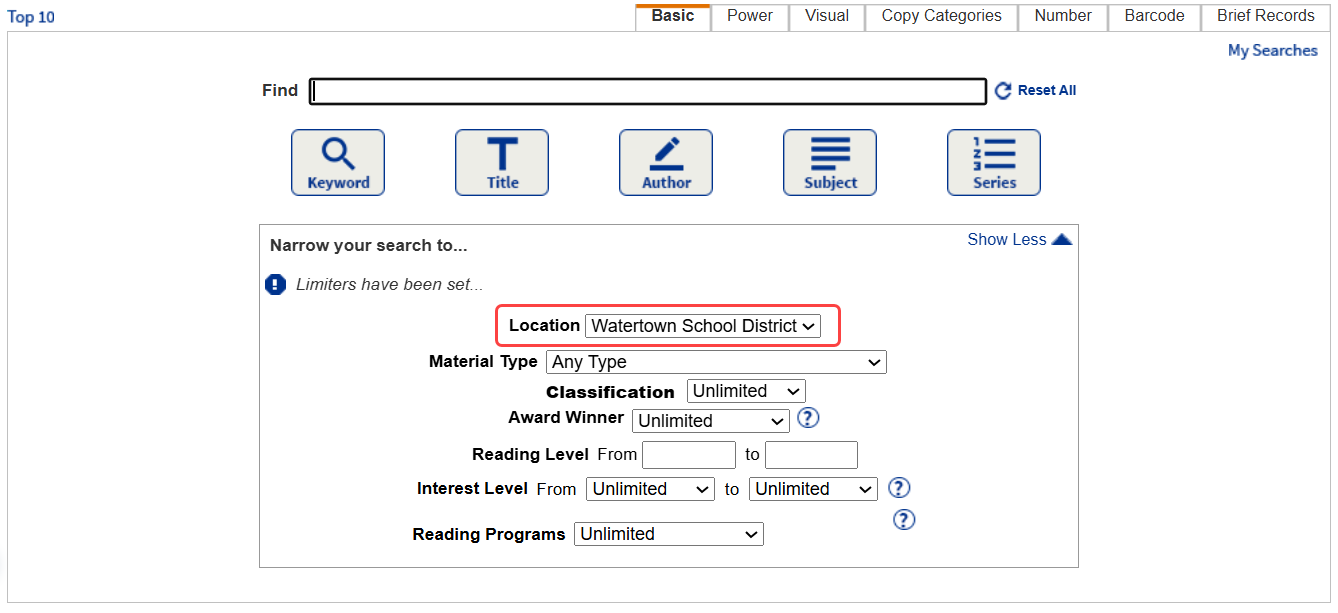
- To find a title, perform a Basic or Power search. To include materials at other schools in your district, from the Location drop-down, select the district or a site type.
- On the Search Results page, click the title of the item you want to request.
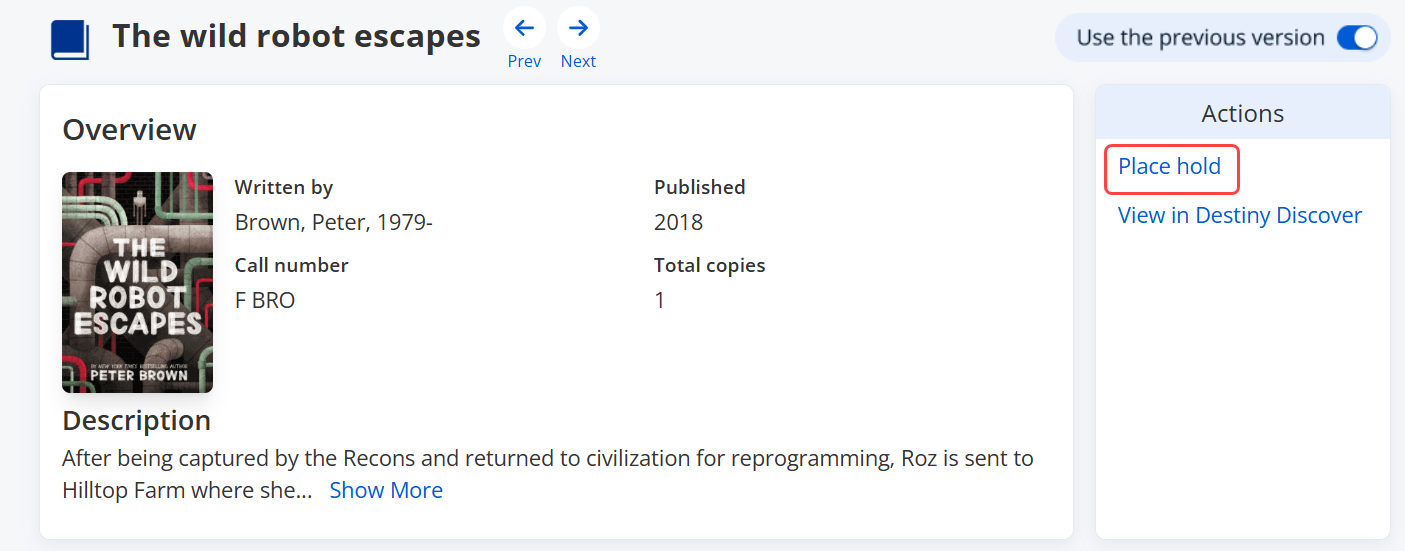
- On the Title Details page, click Place hold or Hold It (depending on whether you are viewing the new or original Title Details look).
- In the Requesting section, select when you want the item.
If you select... Then... As soon as possible
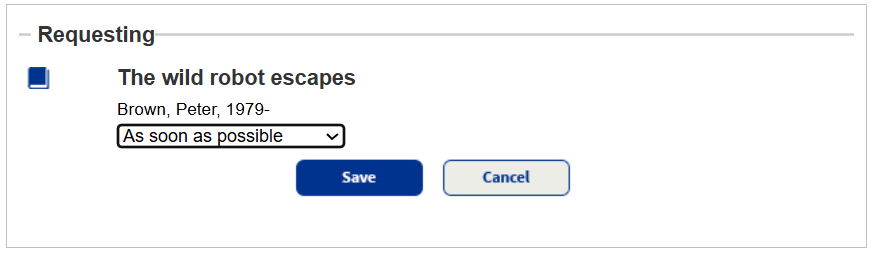
Click Save to place the request.
Reserve for specific date
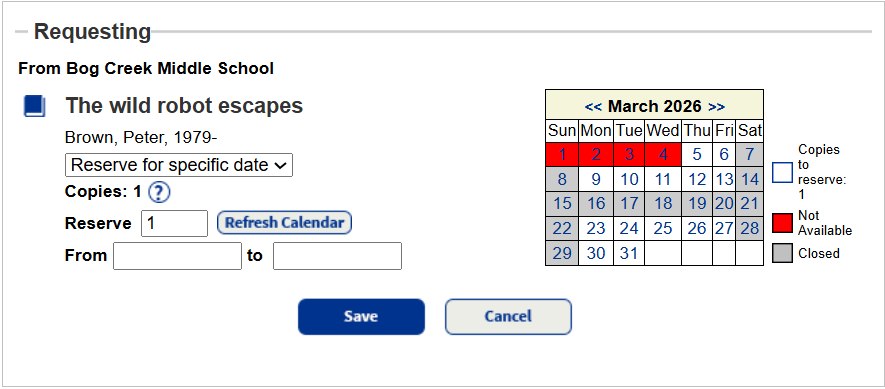
Note: This option appears if you have the access level permission, Place reserve for self from Catalog.
- In the Reserve field, enter the number of copies you want, and click Refresh Calendar.
Notes: - The Copies field does not include lost or hidden copies, unless the patron has permission to see hidden copies.
- If all copies of a title are lost, the Copies field does not appear. The patron can only place a hold on the title.
- If the library included a title in a related titles group, the Copies field also includes copies of related titles.
- Enter the dates you want the item in the From and to fields. You can use the calendar on the right to identify when there are copies available.
Note: If the title is not available when you want it at the school you selected, check the availability at a different school.
- In the Reserve field, enter the number of copies you want, and click Refresh Calendar.
- Click Save to place the request.