Add copies to titles (Library Manager)
The Add Copies and Edit Copy pages let you enter copy-specific information for the materials in your collection. The information can be as brief or complete as you like.
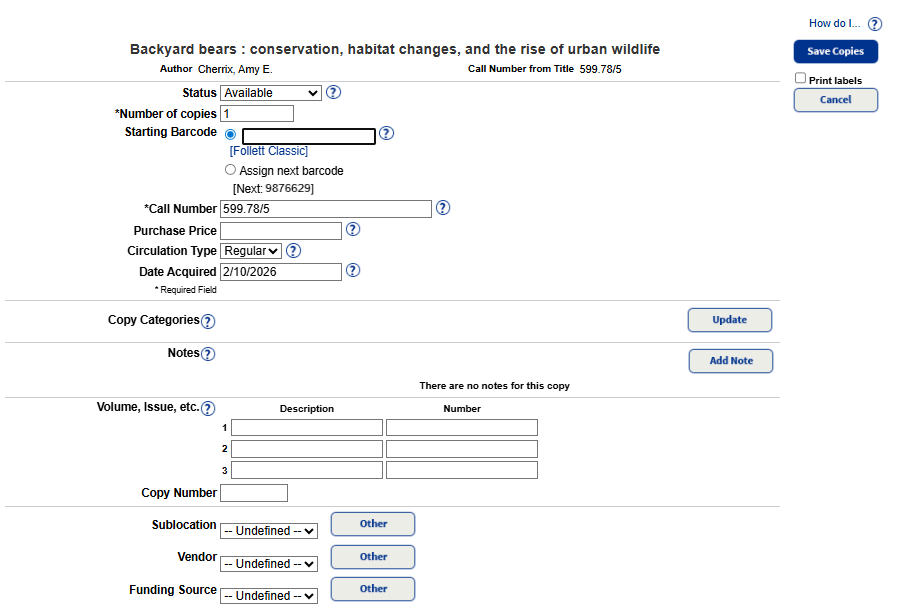
The only required fields are Number of copies, Starting Barcode, and Call Number. Use the remainder of the fields as needed.
To add a copy:
- To access the title record you want to add a copy to, do one of the following:
If...
Then...
If you know a title record already exists at your school or district
- Select Catalog > Library Search.
- Use the Location drop-down to search across the district.
- Search for the title.
- From the Search Results page, next to the title you want to add copies to, click Details.
If you are not sure if a title record already exists at your district, or you know you need to add one
- Check available sources for the title.
- Do one of the following:
- If the title exists in your district, or as an available source, next to the title you want to add copies to, click Details.
- If the title does not exist in your district or as an available source, you will need to add the title record manually before you can add a copy.
Note: If you select a title record from an available source (Alliance Plus or Z-source), the record will be added automatically when you add a copy.
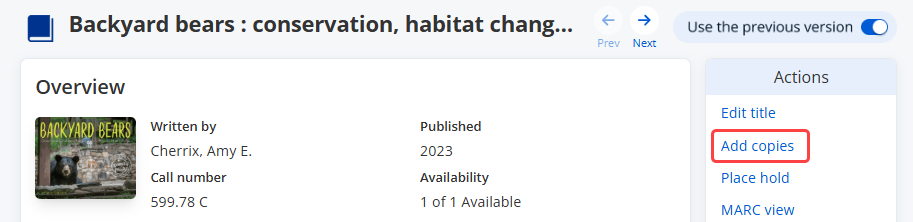
- The Title Details page opens with additional information about the item. Click Add copies to add a copy to this record.
- If adding copies at the district, do the following:
- From the Site Type drop-down, select the site type or district.
- From the Site Name drop-down, select the appropriate site.

- Enter all required information. Complete other fields as needed. Reports and inventory are more accurate when you complete more fields. Click
 next to a field for more information.
Field Name Description Status
The copy's availability for circulation. *Number of copies (required) The number of copies you want to add. Starting Barcode Manually add, or have Destiny assign the next available barcode. *Call Number (required) The copy's call number. Purchase Price Include the price if you want the information to show on overdue and fine notices or to calculate your collection value accurately. Circulation Type Classifications of library materials that let you have different loan policies for different materials. You can also limit searches, reports, and notices by circulation type. By default, this is set to the library’s default circulation type. Date Acquired By default, it is set to the current date. Copy Categories Group copies for many different purposes, such as supporting curricula, tracking vendors and funding sources, creating bibliographies and reading lists, and promoting special collections or new materials. Notes Include information unique to a copy, such as damage to the book or a signed copy. The note shows at the top of the page whenever you first retrieve a copy in Circulation. Volume, Issue, etc. If the copy requires enumeration or chronology (for example, Volume, Issue, Number, or Year), you can enter that in this field. Copy Number Add a number for each copy of the same title. Sublocation Assign the copies to a specific area in your library or by a location/
genre/subject.Vendor The vendor you purchased the copies from. Funding Source Indicate that the copies were purchased using a particular funding source. - To print barcode or spine/pocket labels for the copies, select the Print labels checkbox.
- After you enter all the information, click Save Copies.
For steps to add copies as a district user, see Add or edit district copies (Library Manager).