View resources on Open Site Orders (District Warehouse)
As a district warehouse user, use the Resources tab of the Resource Orders page to see an overview of district orders by resource.
| Note: To see resource orders by order status, use the Track tab. |
- Log in to the district warehouse.
- Select Catalog > Resources Orders > Resources tab.
The Resources On Open Site Orders page appears.
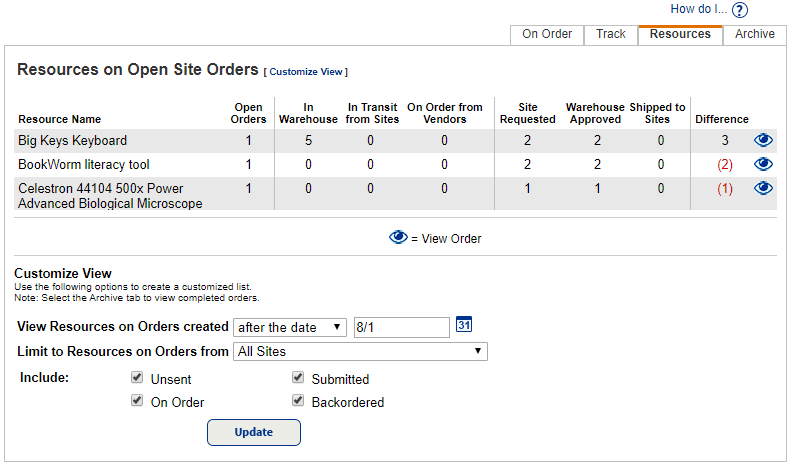
Resources are listed by name, and each column provides insight into the district supply of the resource items.
- Open Orders: The count of all orders that have not been shipped.
- In Warehouse: The quantity of items currently available for orders at the district warehouse.
- In Transit from Sites: The quantity of items that are coming to the district warehouse from a site in the district.
- On Order from Vendors: The quantity of items that are coming to the district warehouse from a vendor.
- Site Requested: Total quantity of requested items from all Open Orders; this can include items requested by multiple sites and/or from multiple orders.
- Warehouse Approved: Quantity of items approved by the district warehouse.
- Shipped to Sites: Quantity of items shipped across all the orders.
- Difference: The difference between (Items with In Warehouse, In transit or On Order statuses) minus (Items with Warehouse Approved or Shipped statuses).
Example: Apple MacBook Pros in the image above could be represented as: (4 In Warehouse) - (1 Warehouse Approved) = 3 (Difference).
- To see orders orders requesting a specific resource, click
 , next to that resource.
Customize your view of the page
District warehouse users can filter the view:
- To view resources on orders that occurred after, on, or before a specific date, use the View Resources on Orders created drop-down, and then enter a date in the next field.
- To view orders that came from a particular site, use the Limit to Resources on Orders from drop-down.
- To limit the view to specific statuses, select the checkboxes in the Include section.
- To apply customizations, click Update.
|
Note: Any customizations on the Resources On Open Site Orders page carry over to the Orders By Resource page. |