Offline Circulation
Circulating offline lets you circulate outside of Destiny when your system is unavailable or you do not have access to a computer, such as taking a book cart to a classroom.
To circulate offline, you can use Follett Remote on a workstation or handheld device, or a text editor with a keyboard or scanner.
All of these hardware/software combinations produce a text (.txt) file you can upload to Destiny for processing.
If you use a PHD Dolphin+ or create a text file, you need to include special circulation command codes that indicate the type of transactions you are performing. (Follett Remote adds them automatically.)
|
Note: When you are done performing remote circulation, you need to prepare the data file before uploading it to Destiny. |
Upload data files to Destiny
- Log in to Destiny.
- Select Circulation > Offline Circulation. The Offline Circulation page appears.
- If you are logged in to a site and have both Library Manager and Resource Manager, select either the Library Materials or Resources tab.
 Library Materials
- Click Choose File (or Browse, based on your browser), and then find the Follett Remote folder on your computer.
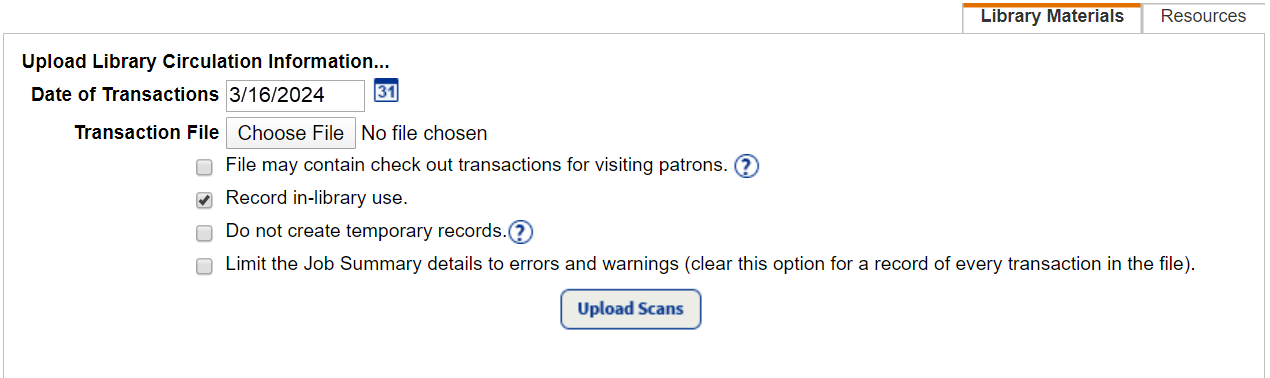
- Find and select the circulation .txt file you want to upload, and then click Open.
Notes:
- If you have multiple data files, choose the oldest file first to ensure checkins and checkouts are tracked accurately.
- If the Follett device you used previously only had minimal charge, the year of the file name can be corrupted. If you cannot find the file to upload, look for a file with the date you performed the remote circulation, but with the wrong year.
- In the Date of Transactions field, make sure it matches the date in the data file name.
- Use the information in the following table to select the appropriate checkboxes:
Checkbox When to Use File may contain check out transactions for visiting patrons (Library Manager only)
If the data file includes circulation for patrons from other schools
Record in-library use If you want Library Manager to record circulation statistics for materials used in the library only
Do not create temporary records
If you want to prevent Library Manager from creating a temporary record when it does not recognize a barcode number during the import
Limit the Job Summary details to errors and warnings
If you want Destiny to limit the Job Summary to only transactions that resulted in errors or warnings. Deselect this checkbox to record every circulation transaction.
- Click Upload Scans. The Job Manager opens once the file is uploaded.
- Click Refresh List to update the job status. Once the status of the Offline Circulation file changes to Completed, click View to review it for any errors or warnings.
- After you confirm that the upload went as you expected, delete the data file from the Follett Remote folder on your computer.
Resources (district- or site-level)
- Click Choose File (or Browse, based on your browser), and then find the Follett Remote folder on your computer.
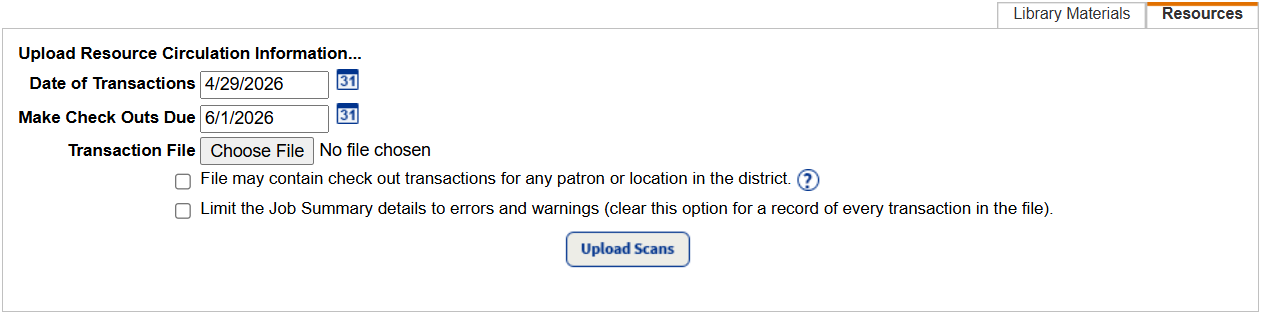
- Find and select the circulation .txt file you want to upload, and then click Open.
Notes:
- If you have multiple data files, choose the oldest file first to ensure checkins and checkouts are tracked accurately.
- If the Follett device you used previously only had minimal charge, the year of the file name can be corrupted. If you cannot find the file to upload, look for a file with the date you performed the remote circulation, but with the wrong year.
- If uploading data at the district-level, barcodes can be from any site in the district.
- In the Date of Transactions field, make sure it matches the date in the data file name.
- From the Make Check Outs Due field, click
 to select or type the desired due date.
 - If the data file includes circulation for patrons or locations from other schools, select the File may contain check out transactions for any patron or location in the district checkbox.
- If you want Destiny to limit the Job Summary to only transactions that resulted in errors or warnings, deselect the Limit the Job Summary details to errors and warnings checkbox to record every circulation transaction.
- Click Upload Scans. The Job Manager opens once the file is uploaded.
- Click Refresh List to update the job status. Once the status of the Offline Circulation file changes to Completed, click View to review it for any errors or warnings.
- After you confirm that the upload went as you expected, delete the data file from the Follett Remote folder on your computer.
Job Summary Content
Although Destiny automatically handles many exceptions, you may need to take further action. Destiny automatically performs the following actions:
Library Materials
- Overrides any block conditions on a checkout and notes them in the Job Summary.
- Marks a copy Lost if the checkout patron is not found.
- If you circulate to patrons at other schools in the district and you did not select the File may contain … checkbox, marks the copy Lost and lists the patron with that barcode number in the Job Summary.
- If you circulate to patrons at other schools in the district and selected the File may contain … checkbox, but more than one patron has a specific barcode number, marks the copy Lost and lists each patron with that barcode number in the Job Summary.
- In the summary, lists any unknown copy that was checked in.
- If you selected Do not create temporary records, lists the unknown copy in the summary.
Otherwise, Destiny creates a temporary copy for the checkout.
- In the summary, notes any holds that were readied, or fines that were created or deleted, or refunds credited on checkin.
Resources
- If a duplicate barcode is detected and the Prevent duplicate barcodes across the district setting is enabled, the barcode is skipped and is logged in the summary.
- Marks an item Lost if the checkout patron is not found.
- If you circulate resources to patrons or locations at other schools and you did not select the File may contain … checkbox, marks the item Lost.
- If you circulate to patrons or locations at other schools in the district and selected the File may contain … checkbox, but more than one patron or location has a specific barcode number, marks the item Lost and lists each patron, or location, with that barcode number in the Job Summary.
- In the summary, lists any unknown item that was checked in.
- In the summary, lists any unknown item that was checked out.
- In the summary, notes a checkout of a resource type that is not allowed for the patron's Patron Type.
Textbooks
- Marks a copy Lost if the checkout patron is not found.
- If you circulate to patrons at other schools in the district and you did not select the File may contain … checkbox, marks the copy Lost and lists the patron with that barcode number in the Job Summary.
- If you circulate to patrons at other schools in the district and selected the File may contain … checkbox, but more than one patron has a specific barcode number, marks the copy Lost and lists each patron with that barcode number in the Job Summary.
- In the summary, lists any unknown copy that was checked in.
- In the summary, lists any unknown copy that was checked out.
- In the summary, notes any fines that were created or deleted, or refunds credited on checkin.
Permissions Needed
To access Circulation > Offline Circulation, the following permissions are needed:
Library Manager
- Check out library materials (Library Materials tab)
- Check in library materials (Library Materials tab)
- Monitor/delete site's jobs (General tab)
Resource Manager
- Check out resources (Resources tab)
- Check in resources (Resources tab)
- Monitor/delete site's jobs (General tab)
Textbook Manager
- Check out textbooks (Textbooks tab)
- Check in textbooks (Textbooks tab)
- Monitor/delete site's jobs (General tab)
Type of Transactions
- Library Manager: Checkins and checkouts are the only types of transactions that you can perform offline. You need to mark copies lost and manage fines and holds online.
- Resource Manager: Checkins, checkouts to patrons, and checkouts to locations are the only types of transactions that you can perform offline. You need to check out to departments, or locations without barcode numbers, online.
- Textbook Manager: Checkins, checkouts to patrons, and checkouts to (local) teachers are the only types of transactions that you can perform offline. You need to check out by class online.
Note: When checking out textbooks to teachers, the Undefined class is used. After you upload the remote circulation file to Destiny, you can transfer the offline checkouts to a defined class. Find and select the teacher in Circulation > Patron Status and click the transfer icon under Currently Teaching. You cannot transfer the checkouts to multiple classes.
Circulate offline with command barcodes
You can check in and out offline by creating a file of barcode scans. If you are not using Follett Remote, you need to scan the special circulation command codes that indicate the type of transaction you are performing offline.
You can create the file several ways. In fact, you can use any method of barcode collection that results in the proper ASCII text format.